01 What the portal is
The portal is the web tool to manage your organization's whole incident operation: triage, assignment to teams, follow-up, communication with users and performance reports.
It's designed for management roles:
Field users (reporters, technicians and providers) work from the mobile app. The portal is the control centre.
02 Access & navigation
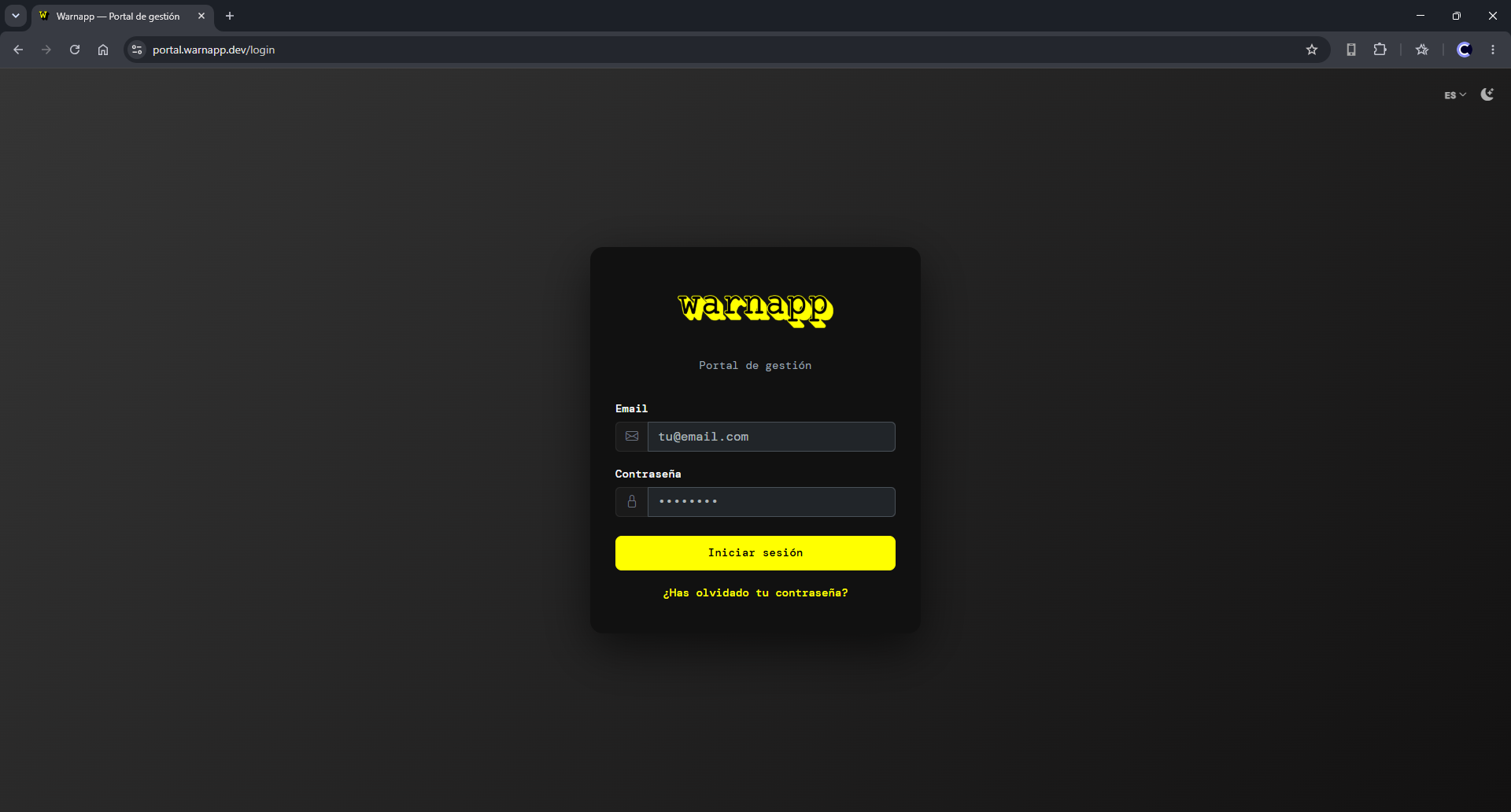
Sign in
- Open the portal in your browser.
- Enter your email and password and click Sign in.
The side menu
All navigation is in the left bar, grouped into sections:
dashboard
Overview in KPIs.
incidents
List and management.
communications
Announcements to users.
master data
Categories, teams, contacts.
administration
Company, users, plan, storage.
reports
Operations, trends, map…
Top right you have the language selector and the theme toggle (light/dark). You can collapse the side menu to gain space.
03 Dashboard
The home screen summarizes your operation's status at a glance:
- KPIs: open incidents, critical, unassigned, resolution times…
- Distribution by status and resolution times.
- Top teams and top categories.
- Critical open incidents and backlog aging.
- Trend over the last few days.
With the period selector (7 / 30 / 90 days or a custom range) you adjust the calculation window.
04 Incidents
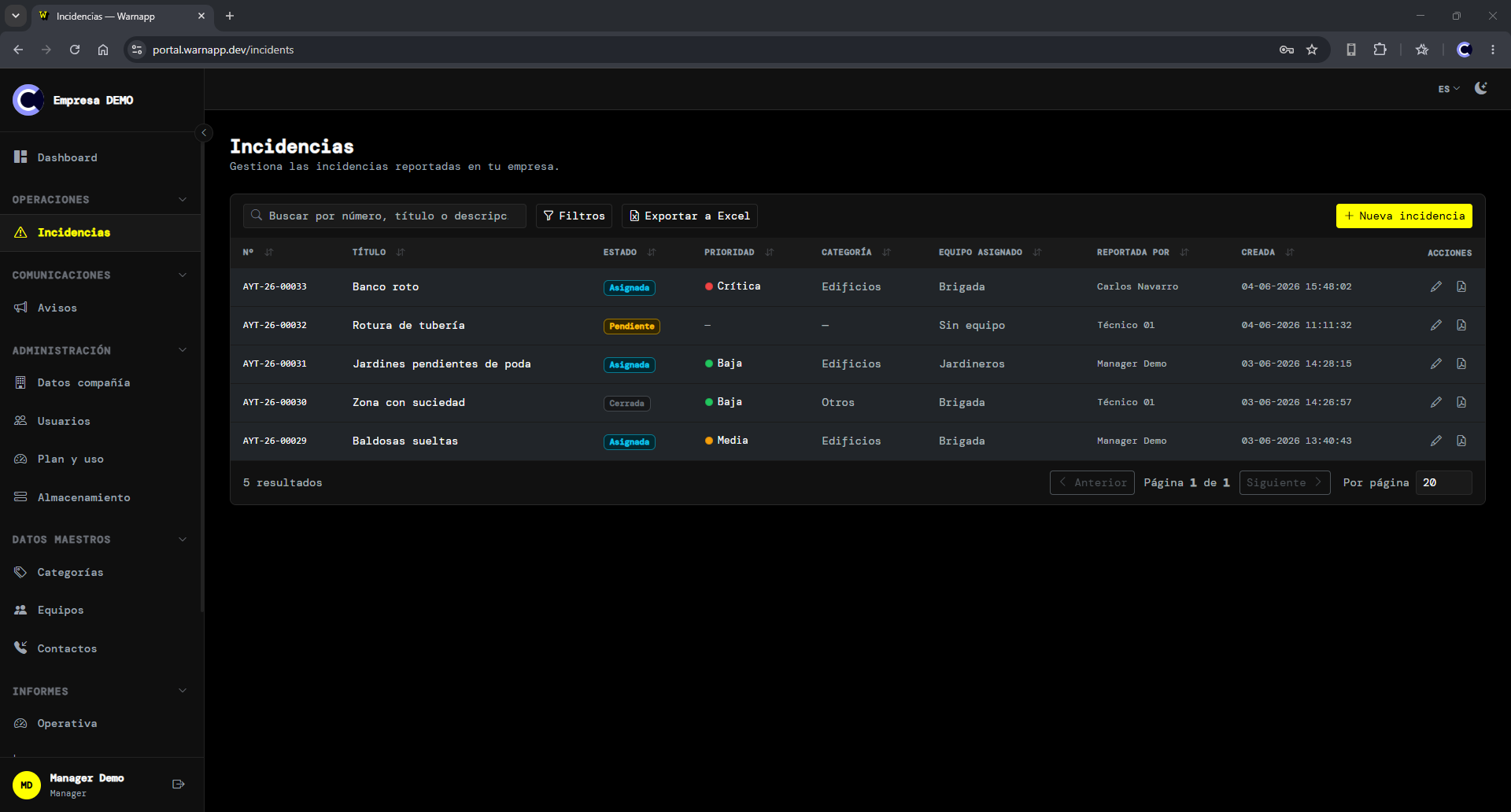
The list
A table with all the company's incidents. You can:
- Search by text.
- Filter by status, priority, category, subcategory, team and dates.
- Sort by clicking the column headers.
- Export to Excel or generate a PDF report per incident.
If you open an incident and go back to the list, the filters, search and sort you had are kept. Reloading the page (F5) starts fresh.
Incident detail
When you open an incident you'll see its data in tabs:
- Detail — description, category, priority, location (with a map), attachments… You can edit the fields, including the location (searching an address or moving the marker).
- Management — assign the incident to a team.
- Notes — public and internal comments.
- History — everything that happened, with date and time.
- Hours — logged time records.
Statuses & actions
Depending on the status you can assign, resolve, close, reject (with a reason), reopen or cancel the incident.
Create an incident
- Click New incident.
- Fill in title, description, category/subcategory and priority.
- Set the location: type an address and click Search, or click on the map to place the point.
- Save. You can then assign it to a team.
Delete cancelled incidents
A cancelled incident can be permanently deleted (with its attachments and history). Two ways: one by one from the list, or all at once from Administration → Storage → Maintenance.
Permanent deletion can't be undone. Other statuses (closed, rejected) are kept for traceability.
05 Communications
From Communications → Announcements you publish messages that reach users (in the app, in their Announcements tab, and as a push notification).
- Create an announcement with its title and message.
- Choose the recipient: the whole company, a role, a team or a user.
- Set the validity and publish it.
06 Master data
Categories and subcategories
Define the categories used to classify incidents and, within each, their subcategories. You can enable or disable them.
Teams
Create work teams and assign their members. Incidents are assigned to teams.
Contacts
Maintain the contacts directory users see in the app, including the emergencies group.
07 Administration
Company data
Name, logo, brand colour and your organization's details. The logo and colour are also used in reports and exports.
Users
- Invite / add users (via access codes they enter in the app).
- Assign roles (reporter, technician, provider, manager…).
- Deactivate or reactivate accounts and export the list.
The company access code (format AAA-9999) is what your users enter in the app to join the organization.
Plan & usage
Check your contracted plan and your usage against its limits (users, storage, incidents…).
Storage
- KPIs for total usage and percentage of the limit.
- Breakdown by year, by attachment type and monthly trend.
- Top incidents by size.
Maintenance
At the bottom of the page there's a Maintenance section with the option to delete all cancelled incidents in the company at once. It shows how many there are and asks for a double confirmation.
This clean-up permanently deletes cancelled incidents with all their attachments. Use it with care.
08 Reports
The Reports section brings together the analysis of your operation. Most let you choose the period.
operations
MTTR, MTTA and SLA by priority, with the period's breaches.
trends
12 months, day×hour heat map and year-over-year comparison.
map
Geographic incident heat map.
people
Productivity by technicians and providers.
hours worked
Hours by user, incident, team or category.
annual report
Executive report for a year, exportable to PDF.
Incident heat map
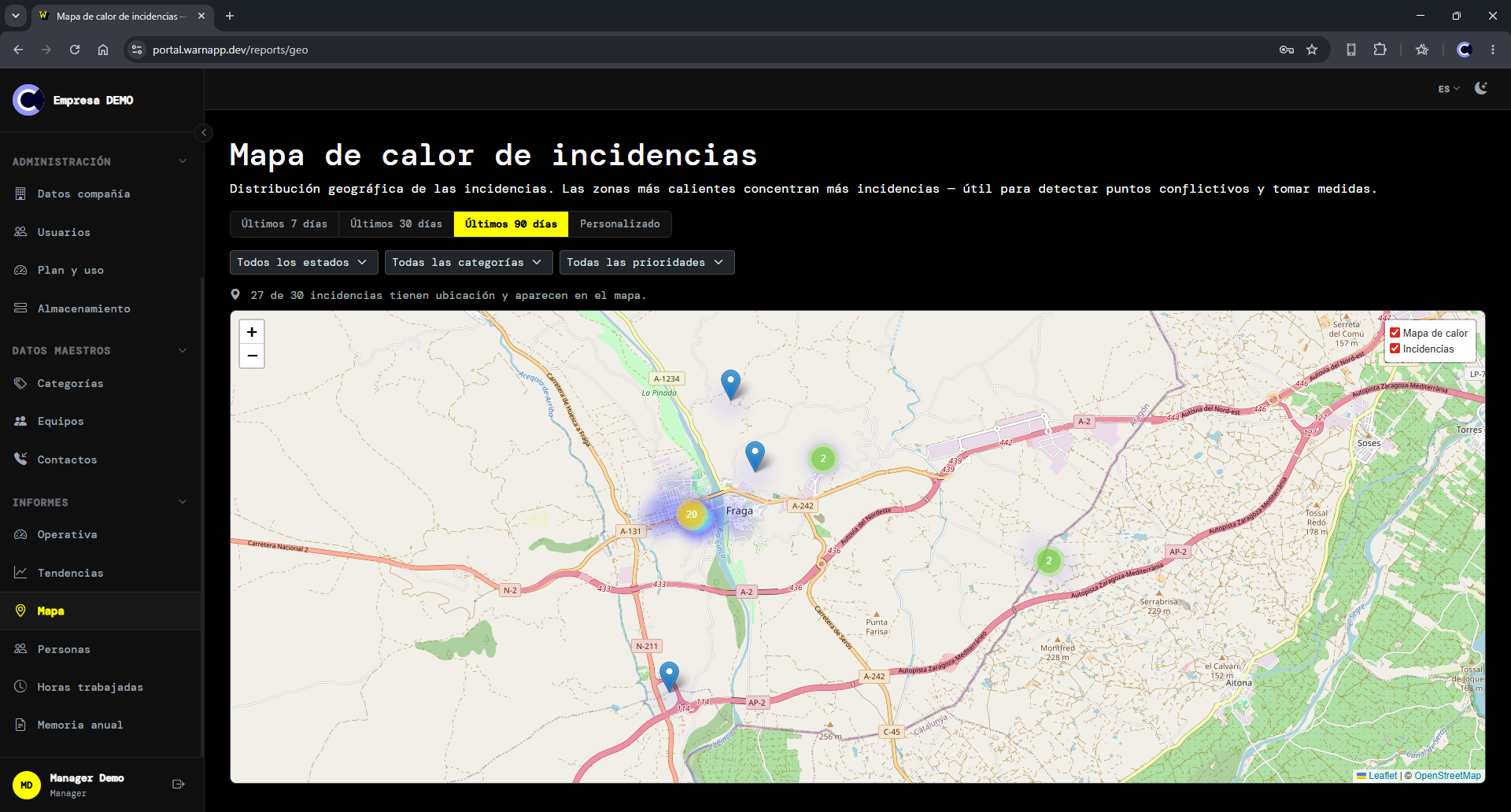
The Map report shows the geographic distribution of incidents: hotter areas concentrate more incidents, which helps to spot problem zones and take action.
- Filter by period, status, category and priority.
- Switch between the heat layer and the markers: when you zoom in, each point links to its incident detail.
- A counter shows how many incidents have a location and appear on the map.
Only incidents with coordinates appear on the map. Those created from mobile include GPS; in the portal you can set the location when creating or editing.
09 Language & theme
From the top bar you can change the language (Español, Català, English) and toggle the light/dark theme. Your preference is remembered across sessions.
10 FAQ
How do I add a new user?
In Administration → Users. The user joins from the app with the company access code, and you assign their role.
Why isn't an incident on the heat map?
Because it has no coordinates. Edit it and set its location, or create it with a location from the start.
Can I recover a permanently deleted incident?
No. Permanent deletion (of cancelled incidents) is irreversible.
Who gets an announcement's notifications?
The recipients you choose when publishing it (the whole company, a role, a team or a user), in their app and via push.
Looking for the field users' guide? See the mobile app manual.