01 Welcome to Warnapp
Warnapp is the app your organization uses to manage incidents: reports of something that needs fixing (a breakdown, a task, a problem). Depending on your role you can report them, receive them, resolve them and follow up.
With the mobile app you can:
- Create an incident in seconds, with a photo and location.
- Check the status and the timeline of each incident.
- Get notifications when something changes or work is assigned to you.
- Communicate through notes and log your work hours.
- Access the contacts and team directory.
One account can belong to several organizations. You always work within one active organization, and you only see that organization's information.
02 Install the app
- Download Warnapp from Google Play (Android) or the App Store (iPhone/iPad) — use the buttons below.
- Open it and grant the permissions it asks for the first time (notifications, location and camera). You can change them later in your phone settings.
03 Create an account & sign in
Sign in
Enter your email and password and tap Sign in. If it's your first time, create an account from Create account.
Create a new account
- Tap Create account on the sign-in screen.
- Fill in name, email, password (and confirm it) and the organization code in the format
AAA-9999that your manager has given you. - Check your inbox and verify your account using the link you receive.
Forgot your password?
Tap Forgot my password, enter your email and you'll get a link to set a new one.
If you requested to delete your account, you have 15 days to recover it. When you sign in you'll see a screen with a Recover account option; tapping it cancels the deletion.
04 Your organization
Join with a code
To start working you need to belong to an organization. Your manager will give you an access code in the format AAA-9999.
- Tap Join with a code.
- Type the code you were given.
- Confirm: you're now part of that organization.
Switch organization
If you belong to more than one, go to Settings → My organizations and choose which one to work with. The whole app then shows that organization's information.
You only see incidents, contacts and announcements from the active organization. Information is never mixed between organizations.
05 The main screen
The app is organized into a bottom tab bar:
announcements
Messages from your organization.
contacts
Useful phone numbers and emails.
incidents
The heart of the app: create and track.
team
Internal directory (technicians and managers).
settings
Profile, configuration and session.
Some tabs and actions only appear for certain roles. The Team tab, for example, is visible to technicians, providers and managers.
06 Incidents
View the list
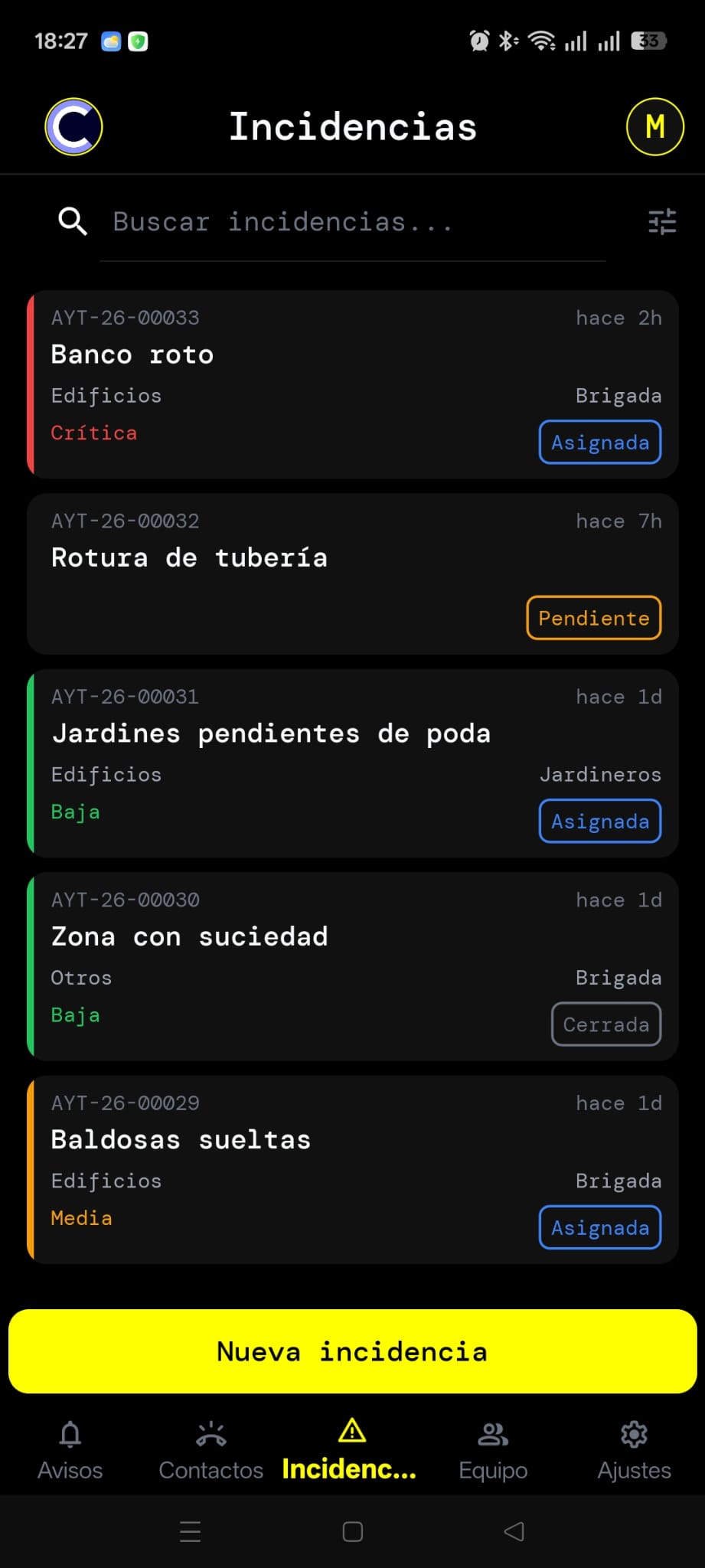
The Incidents tab shows cards with the number, title, status (in colour), priority, category, team and date.
- Search: type in the top bar to filter by title or description.
- Filter: by status, priority or category. Technicians and providers also have a "See other teams' tasks" switch.
- Refresh: pull down to refresh.
Create an incident
Tap the + button and fill in the form:
- Title required — a short sentence describing the problem.
- Description — extra details (optional).
- Category and subcategory Manager — classify the incident.
- Priority Manager — Low, Medium, High or Critical.
- Location — the app can detect it automatically; you can also type the address or tap Pick on map and move the marker.
- Photos — attach up to 5 images from the camera or gallery.
- Tap Save to create it.
If automatic geolocation is on (Settings → Configuration), the position is filled in automatically when you create the incident. You can turn it off if you prefer to enter it by hand.
Incident detail
Tap a card to open its detail, organized in tabs:
Detail
All the information: who reported it, status, category, priority, assigned team, location (with a View map / View route button), description, attachments and, if it was rejected, the reason.
Solution Technician Manager
Where whoever handles the incident describes the solution and adds work photos (up to 5). Two buttons: Save (draft, without closing) and Finish (marks the incident as resolved).
Notes
Comment timeline. Those with permission can choose whether a note is Public (everyone sees it, including the reporter) or Internal (team only). Reporting users always write public notes.
Management Manager
Management actions depending on the status: assign to a team, claim, close, reopen, reject (with a reason) or cancel.
History Technician Manager
A chronological record of everything that happened: creation, assignment, claim, resolution, closing, etc., with date and time.
The incident life cycle
| Status | What it means |
|---|---|
| Pending | Created, not yet assigned. |
| Assigned | Assigned to a team. |
| In progress | A technician claimed it and is working on it. |
| Resolved | Work finished, pending closure. |
| Closed | Validated and finished. |
| Rejected | Discarded with a reason. |
| Reopened | Reopened after being resolved/closed. |
| Cancelled | Voided. |
Log work hours Technician Manager
From the Solution tab, in the "Logged hours" block, tap Add hours:
- Pick the date (up to 15 days back).
- Enter the duration in hours and minutes (in 15-minute steps).
- Write a description of the work (required).
- Tap Save.
07 Announcements
The Announcements tab shows the messages your organization publishes. Each one shows who sent it and until when it's valid. Tap an announcement to read the full content.
When an announcement aimed at you is published, you also get a push notification on your phone.
08 Contacts
A directory of useful phone numbers and emails for the organization, grouped by category (with a highlighted Emergencies group). Tap to call or send an email directly.
09 Team Technician Manager
An internal directory of your team members, with their phone and a Provider tag where applicable. Tap to call. This tab is not available to reporting users.
10 Profile & settings
Your profile
In Settings → Profile you can:
- Change your photo, name and phone (email is not editable).
- Choose the language: Español, Català or English.
- Change your password (current + new, at least 8 characters).
- Delete your account (with confirmation by typing
DELETE).
Remember to tap Save changes.
Configuration
- Appearance: Light, Dark or Automatic theme (follows the system).
- Automatic geolocation: turn the automatic location fill-in on or off when creating incidents.
Other
- Organization data Manager — name, short name and incident prefix.
- About — app version and privacy policy.
- Sign out — at the bottom of the Settings menu.
11 Notifications
The app notifies you about what affects you. The first time it will ask for permission to send notifications; if you decline, the app still works but you won't get alerts on your phone (you can enable it later in the system settings).
You'll get a notification when, for example:
- An incident is created or assigned to you.
- An incident that affects you changes status (claimed, resolved, closed, reopened, cancelled).
- Someone adds a public note.
- Your organization publishes an announcement aimed at you.
Notifications arrive in your language (the one set in your profile).
12 Roles & permissions
What you can do depends on your role in the organization:
| Action | User | Technician / Prov. | Manager |
|---|---|---|---|
| View incidents | Their own | Assigned (+ other teams) | All |
| Create incident | Yes | Yes | Yes (with category and priority) |
| Claim | — | Yes | — |
| Resolve / solution | — | Yes | Yes |
| Log hours | — | Yes | Yes |
| Internal notes | — | Yes | Yes |
| Management (assign, close…) | — | — | Yes |
| Team tab | — | Yes | Yes |
| Organization data | — | — | Yes |
13 FAQ
I'm not getting notifications
Check that you granted the notifications permission in your phone settings and that you have a connection. Signing out and back in re-registers your device.
I don't see the category/priority option when creating
Those fields are only available to managers. As a user, your incident is classified afterwards.
I belong to two organizations, how do I switch?
Go to Settings → My organizations and pick the one you want.
I deleted my account by mistake
You have 15 days: sign in again and tap Recover account.